5 Quick Methods to Find Sponsored Ads on Facebook
By
WinningHunter
on
Jan 12, 2026
Running Facebook ads is not the hard part, but finding winning ads that are actually worth running is. Most advertisers spend hours scrolling through feeds, opening random pages, and saving ads without knowing why they are running or how long they have been live. The result is scattered inspiration and very little clarity.
Sponsored ads are not difficult to access, but they are easy to misread. Some tools surface them instantly with context and performance signals. Facebook’s own features reveal them too, though with more effort and fewer data points. Both methods show different sides of the same campaigns.
In this guide, we will uncover the best methods to find sponsored ads on Facebook to take inspiration and create a successful ad campaign.
Key Takeaways
There is no single best way to find sponsored ads, only methods that fit different stages of research.
Facebook’s native tools show what is live, but they are limited to visibility rather than analysis.
Feed-based discovery works for inspiration, not reliable research or comparison.
Structured platforms like WinningHunter help reduce manual work by organizing ads in one place.
Effective research follows a clear order: find, verify, then test.
Best Ways to Find Sponsored Ads on Facebook (Ranked by Efficiency)
Method 1 (Recommended): Using WinningHunter to Discover Sponsored Facebook Ads at Scale
Manual Facebook ad research does not scale well. Scrolling feeds or opening advertiser pages shows sponsored ads, but it rarely explains how long those ads have been running or whether they are still receiving budget.
WinningHunter solves this by collecting active Facebook ads into a searchable database that updates daily, allowing you to analyze campaigns by language, technologies, media type, and activity signals instead of relying on random exposure.
1. Set Your Base Search Criteria
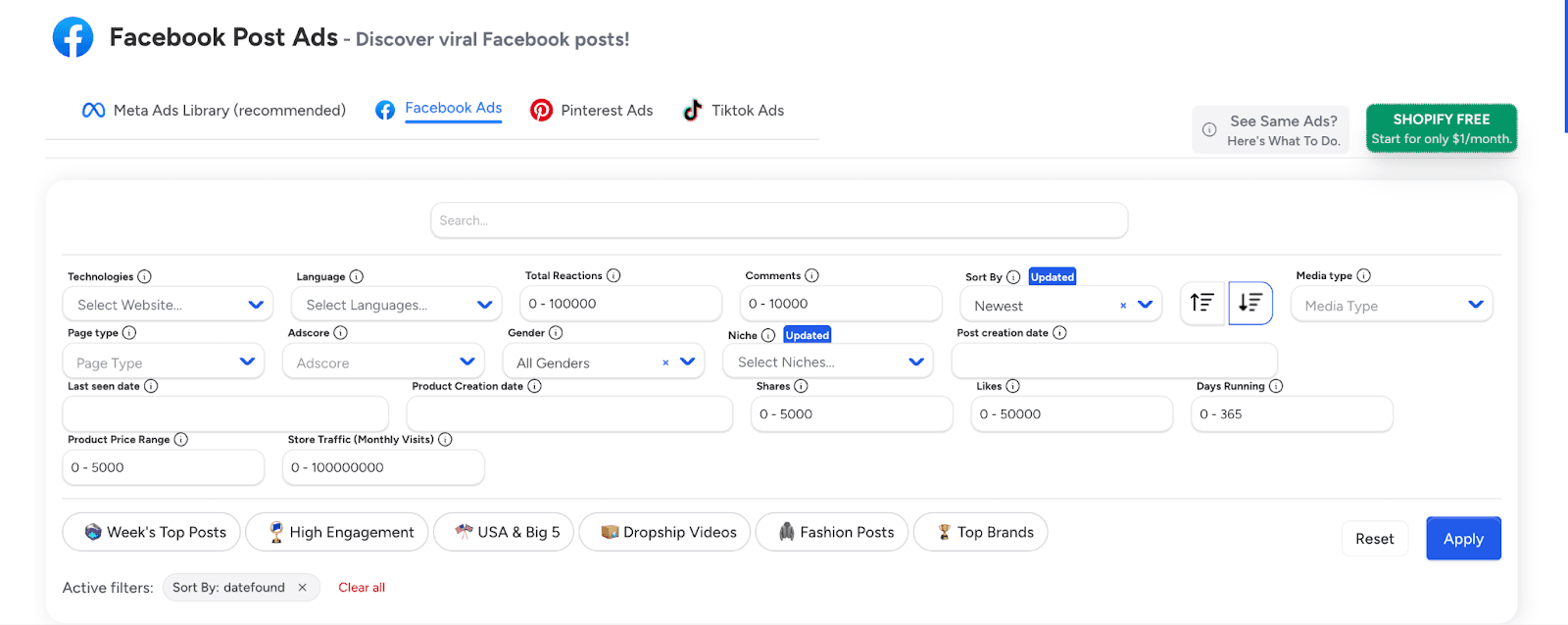
Select the language that matches the audience you want to analyze.
Apply a niche filter to restrict results to one market or product category.
Use the page type filter to separate brand pages from other advertiser sources.
Set media type only if you want to review a specific format.
Leave engagement and activity fields unchanged.
Apply these filters first to define the scope of results before moving into performance-based refinement.
2. Narrow Results Using Ad Activity Signals
Set a minimum range for reactions, comments, or shares to remove low-activity sponsored posts. Increase these values gradually until only posts with visible engagement remain.
Apply a post creation date range to limit results to recent ads. This helps focus on content that is still relevant rather than older posts that no longer show current strategies.
Use the days running filter to surface ads that stayed live past short tests.
Adjust the sort option to newest when tracking recent launches, or keep it aligned with the date found when reviewing posts that already show traction. Refine these filters before analyzing creatives to keep the dataset clean and focused.
3. Focus on Media Type and Creative Format
Use the media type filter to limit results to a single creative format. Select video posts to study hooks, pacing, and opening frames. Switch to image posts when analyzing messaging structure, layout, and visual hierarchy.
Review one format at a time instead of mixing formats in the same view. This makes patterns easier to detect across ads, especially when comparing headlines, call to action placement, or product presentation.
If the same product appears across multiple media types within the filtered results, note this overlap before moving forward. Keep the filter active while reviewing creatives to maintain consistency during analysis.
4. Identify Scaling Behavior Through Repetition
Scan the results for the same product appearing in multiple sponsored posts. Look for repeated visuals, similar copy angles, or identical landing pages across different ads.
Open ads from the same advertiser and compare how many variations are running at the same time. Pay attention to changes in hooks, formats, or captions while the core offer stays the same.
Group ads mentally by product rather than by individual post. Keep these ads saved for deeper review in the next step.
5. Validate With Sales and Revenue Signals
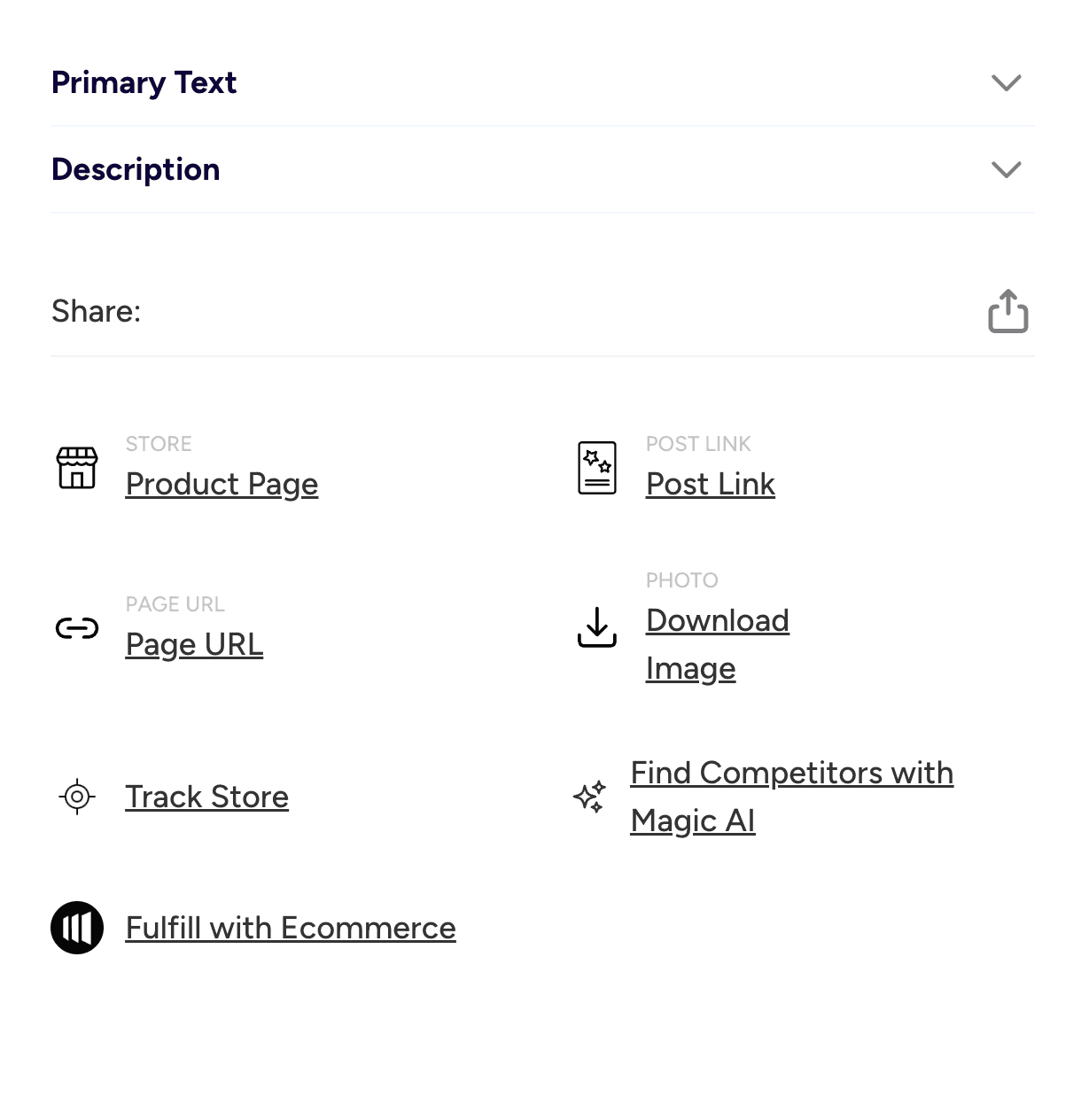
Open an individual sponsored ad to access its primary text and description.
Click the product page option to inspect the landing page tied to the ad.
Use the post link to view the original Facebook post. This helps verify engagement context and confirm whether the ad is still active.
Download the image or creative asset if you need to study visual structure, layout, or reuse it for internal reference. Use the page URL to review the advertiser profile directly.
Track the store to monitor future ads from the same advertiser. Use the competitor discovery option to surface similar advertisers running related campaigns.
In addition to this, you can use the WinningHunter Chrome extension while browsing Facebook. When a sponsored post appears in your feed or on a page, open the extension to view ad details without leaving the platform. This allows you to check advertiser information, related ads, and store-level data in real time.
Method 2: Finding Sponsored Ads Directly in Facebook Ad Library
Facebook Ad Library is where Meta surfaces ads that are currently running on Facebook and Instagram. You can open it directly and start searching without signing in. Most people use it after they already know which brands they want to look at. Instead of hunting for ideas, they use it to check whether a competitor is actually advertising and what those ads look like right now.
When you search by page or advertiser name, every live ad tied to that account shows up exactly as it appears on the platform. This makes it easier to review how offers are presented, how many creatives are running, and whether messaging stays consistent.
Let us now look at the steps to use the Facebook Ads Library to search for sponsored ads.
Step 1: Select the country and ad category
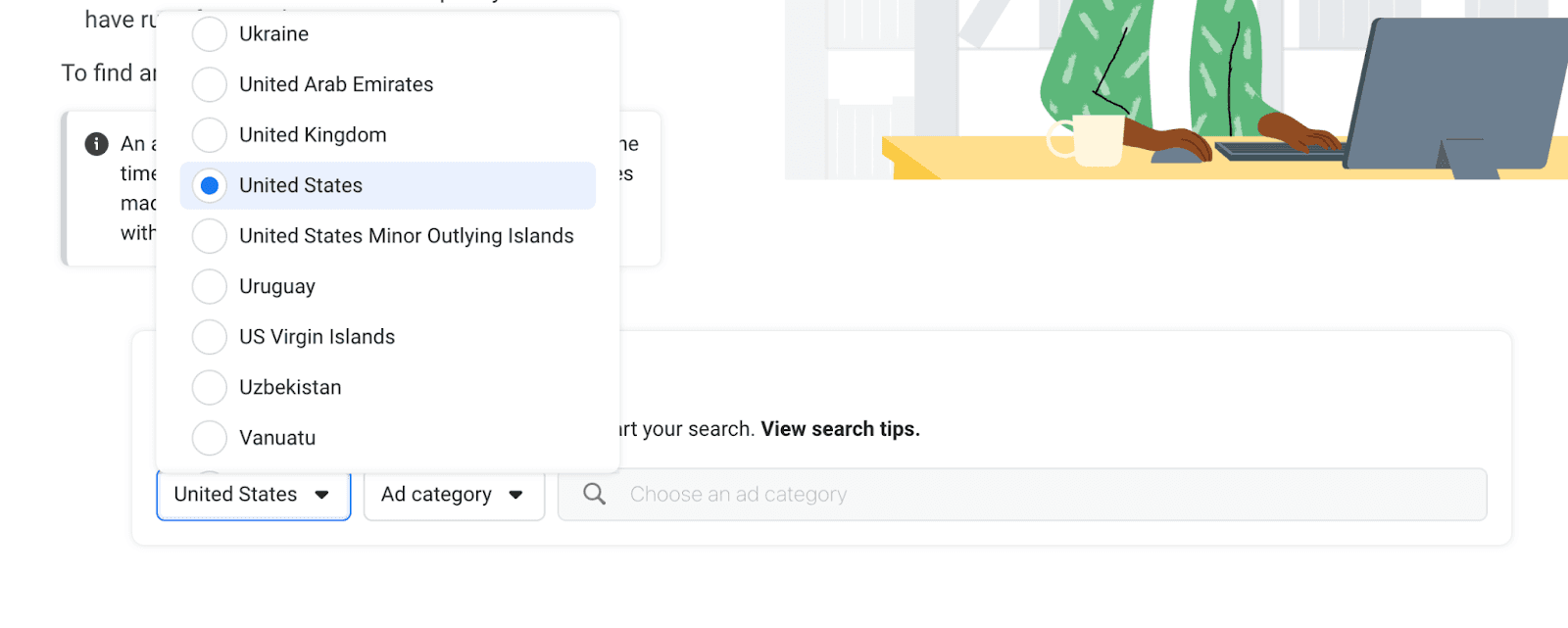
Choose the country where you want to view ads. Select the ad category that applies to commercial advertising so only business-related sponsored ads appear.
Step 2: Search by brand name, page name, or keyword
Enter a brand name, page name, or keyword in the search bar. For example, searching for Sephora shows all sponsored ads currently running from that advertiser.
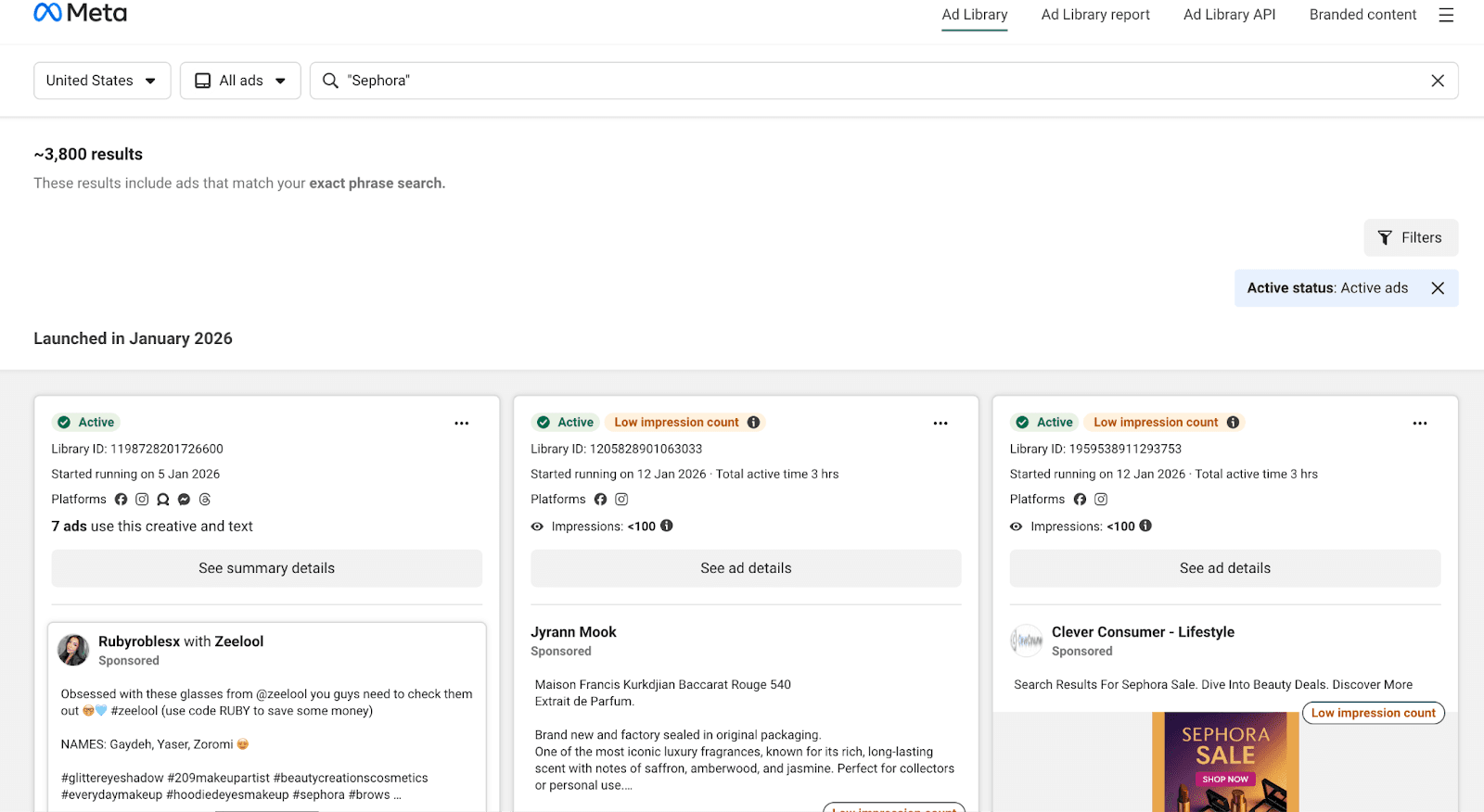
Step 3: Apply available filters

Use the media type filter to separate video ads from image ads. Apply the language filter to focus on ads targeting a specific audience.
Keep the ad status set to active to avoid reviewing inactive campaigns.
Step 4: Review multiple creatives under one advertiser
Scroll through all active ads listed under the same advertiser. Treat each creative as part of a broader campaign. Differences in visuals, copy, or format usually indicate testing or scaling rather than separate offers.
Method 3: Finding Sponsored Ads Through Your Facebook Feed
Facebook displays sponsored ads directly inside the platform and marks them with a Sponsored label. These ads are mixed into regular content and appear across different placements.
Where sponsored ads show up:
News Feed while scrolling posts
Stories between organic story updates
Reels inserted between short-form videos
Marketplace listings alongside products
What appears in your feed is not random, as Facebook personalizes ads based on how you use the platform and the websites you interact with outside it. Browsing behavior, video watch history, page visits, and past clicks all influence what you see. As a result, the same search or scroll session can look very different from one account to another.
Because of this variation, feed-based discovery works best for inspiration. It helps you notice creative styles, hooks, formats, and messaging trends. It is not a reliable method for research, validation, or competitor analysis, since it provides no context around ad spend, duration, or scale.
Method 4: Using Facebook Search and Page Transparency Sections
Facebook allows you to view sponsored ads directly within the platform using search and page-level options. This method works best when you already know the brand or business you want to review.
How to access ads through Facebook:
Search for a brand name directly in the Facebook search bar
Open the business page from the results
Click the Page Transparency section on the page
Select Ads to view all active sponsored content
This view shows ads that are currently live and links directly to their placements, which makes it useful for confirming whether a business is actively advertising and for reviewing creatives tied to a single page.
The limitations are significant. There are no filters to narrow results by format, language, or activity. You cannot compare current ads with past campaigns or see how creatives have evolved.
There is also no visibility into performance, spend, or scaling behavior. Because of this, Page Transparency works only for quick checks on individual brands and not for broader research or competitive analysis.
Method 5: Reviewing Ads You’ve Previously Clicked On
Facebook stores a record of ads you have interacted with inside the Ad Activity section. This includes sponsored ads you clicked, liked, or engaged with while browsing.
To access it, open your Facebook settings and navigate to Ad Activity. The list shows ads in the order you interacted with them, along with direct links back to the advertiser and destination page.
This makes it useful when you want to return to a specific ad you remember seeing earlier. Instead of waiting for the ad to appear again in your feed, you can reopen it, revisit the landing page, or check the advertiser directly from this list.
The same structure also defines its limits. Only ads you personally interacted with appear here, and anything you scrolled past without engaging is excluded. There is no way to browse competitor ads, compare campaigns, or observe broader patterns.
Here is how each method differs:
Method | Where Ads Are Found | Best Use Case | Notes |
Method 1: Using WinningHunter | Centralized ad database | Discovering trending ads, products, and competitors at scale | Built for speed, structure, and organized research |
Method 2: Facebook Ad Library | Meta’s public ad database | Verifying whether specific brands are actively advertising | Shows live ads only, without performance context |
Method 3: Facebook Feed | News Feed, Stories, Reels, Marketplace | Creative inspiration and exposure to new formats | Ads vary by user behavior and interests |
Method 4: Page Transparency | Individual Facebook business pages | Checking active ads for a known brand | Limited to page-level views |
Method 5: Ad Activity | Facebook account settings | Revisiting ads you previously interacted with | Reflects personal interaction history only |
Why Winning Hunter Outperforms Traditional Facebook Methods?
Manual Facebook-based research relies on fragmented steps. You move between feeds, advertiser pages, Page Transparency sections, and Ad Library views. Performance has to be inferred.
Ads are bookmarked, screenshots are saved, and patterns are tracked manually. The process slows further as soon as you try to compare more than a few advertisers at once.
Dedicated tools like WinningHunter change the workflow by centralizing everything in one place. Ads are collected, grouped, and updated continuously. Instead of switching tabs, you filter, sort, and review within a single interface. Patterns emerge faster because creatives, advertisers, and activity signals are already organized.
This difference exists because Facebook limits what it shows, and Native tools focus on transparency, not analysis. They display active ads but avoid surfacing performance context, comparisons, or historical structure. External tools work around this by estimating signals, tracking changes over time, and arranging data so it can be reviewed systematically.
The advantage is not access to ads. It is speed, structure, and the ability to work at scale. What takes hours through manual methods can be reviewed in minutes when ads, context, and trends are aligned in one workflow.
How to Combine WinningHunter With Facebook Ad Library?
A balanced research workflow uses both tools for what they are best at, without forcing either one to do everything.
Start with WinningHunter to scan the market quickly. Use it to surface trending ads, recurring products, and advertisers that appear consistently across a niche. This stage is about narrowing the field and identifying which brands or creatives are worth the attention.
Once you have specific advertisers or ads in mind, switch to Facebook Ad Library to cross-check them. Search for the brand or page to confirm whether the ads are currently active and review how they appear directly on Facebook or Instagram. This adds transparency and helps verify that the campaigns you flagged are still running.
After that, focus on analysis rather than discovery. Review creatives side by side, look at hooks and messaging angles, and open landing pages to assess offer structure and positioning. This step helps separate surface-level ideas from ads that are worth testing.
Used together, this approach keeps research grounded. One tool helps you move fast and stay organized, while the other confirms visibility and context before you commit time or budget.
Choosing the Right Method for Facebook Ad Research
Each way of finding ads answers a different question. Facebook’s native tools show what is live and visible. They are useful when you want confirmation or context, but they stop short once comparisons or volume enter the picture.
As soon as research turns into repetition, manual steps start piling up. The same pages get checked again. Notes are scattered. Ads blur together. This is usually the point where structure matters more than access. WinningHunter exists to reduce that friction by keeping ads, creatives, and patterns in one place instead of across tabs and bookmarks.
Most advertisers already follow this flow, even if they do not label it. First comes finding what is running. Then, check whether it holds up under closer inspection. Only after that does testing make sense. When research follows that order, fewer ideas fall apart midway, and it saves time spent chasing ads that looked interesting but had no depth.
FAQs
What is the fastest way to find sponsored ads on Facebook?
Scrolling your feed or clicking random pages works only when you are looking at a few ads. It slows down fast once you need volume or comparisons. Tools like WinningHunter speed this up by collecting active ads in one place and letting you filter instead of hunt. Facebook’s native tools are still useful, but they are better for spot checks than fast discovery.
Can Facebook Ad Library show how much an ad is making?
No. Facebook Ad Library does not show revenue, conversions, or ad spend. It only confirms that an ad is active and how it appears on Meta platforms. Anything related to performance has to be inferred by looking at how long ads run, how many variations exist, and how offers and landing pages are structured outside the library.
Are all ads shown in Facebook Ad Library profitable?
Not at all. Many ads appear briefly during testing and disappear without results. Others stay alive for reasons unrelated to direct sales, such as brand visibility or retargeting. Facebook Ad Library does not rank or qualify ads in any way. An ad being active only means it is running, not that it is working. Profitability has to be judged through patterns, repetition, and external analysis.
Is it allowed to analyze competitor Facebook ads?
Yes. Facebook intentionally makes sponsored ads public through tools like Ad Library and Page Transparency. Reviewing competitor ads for research and inspiration is common practice. The boundary is how that information is used. Studying messaging, formats, and offers is acceptable. Copying creatives or misrepresenting a brand is not. Responsible analysis focuses on understanding strategies, not duplicating assets.

We already know what works before you even have the chance to blink!
© 2024 WinningHunter.com